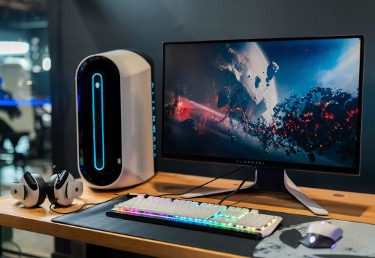
As we step into the new year, it’s the perfect time to give your PC a fresh start. Just like your home, your computer needs regular cleaning and maintenance to ensure optimal performance and longevity. Over time, your PC can accumulate clutter, unused files, and outdated software that slow it down and make it less efficient. In this article, we’ll share 10 effective PC maintenance tips to help you clean up your computer and get it ready for the year ahead.
1. Uninstall Unused Applications
The first step in cleaning up your PC is to identify and remove any applications you no longer use. These unused programs take up valuable storage space and can slow down your computer’s performance. Here’s how to uninstall them:
For Windows Users
- Go to Settings > Apps > Apps & Features
- Select the application you want to remove and click “Uninstall”
For macOS Users
- Drag the application to the Trash
- Alternatively, use the “Manage Storage” option under “About This Mac” to identify and remove unneeded software.
2. Organize Your Files and Folders
A cluttered desktop and disorganized files can make it difficult to find what you need and reduce your productivity. Take some time to sort through your files and create a structured folder system. Here are some tips:
- Sort files by size or date last opened to identify large or rarely accessed files that can be deleted or archived
- Create categories for your documents, such as work, personal, and finances
- Use descriptive names for your files and folders to make them easier to find
3. Use Disk Cleanup Tools
Disk cleanup tools help remove temporary files, system files, and other unnecessary data that can accumulate over time. These tools can significantly improve your system’s performance and free up storage space.
For Windows Users
- Use the built-in Disk Cleanup utility to remove unnecessary files
- Access it by typing “Disk Cleanup” in the search bar
For macOS Users
- Use the “Reduce Clutter” feature in the Storage Management settings
- This will provide recommendations on files that can be safely removed
4. Clear Your Browser Data
Your web browser stores data such as browsing history, cookies, and cache to improve your online experience. However, over time, this data can accumulate and slow down your browser’s performance. Clearing your browser data regularly can help maintain your privacy and improve browsing speed. Here’s how:
- In Google Chrome, go to Settings > Privacy and Security> Clear browsing data
- In Mozilla Firefox, go to Options > Privacy & Security > Cookies and Site Data > Clear Data
- In Safari, go to Preferences > Privacy > Manage Website Data > Remove All
5. Update Your Operating System and Software
Keeping your operating system and software up to date is crucial for maintaining your PC’s performance and security. Software updates often include bug fixes, performance improvements, and new features that can enhance your user experience. Here’s how to update your system:
For Windows Users
- Go to Settings > Update & Security > Windows Update
- Click “Check for updates” and install any available updates
For macOS Users
- Click on the Apple menu and select “System Preferences”
- Click on “Software Update” and install any available updates
6. Run Antivirus and Anti-Malware Scans
Malware, viruses, and other cyber threats can compromise your PC’s performance and security. Running regular antivirus and anti-malware scans can help detect and remove these threats. Here are some tips:
- Use reputable antivirus software such as Norton, McAfee, or AVG
- Schedule regular scans to ensure your system remains protected
- Keep your antivirus software updated to defend against the latest threats
7. Clean Your PC’s Hardware
In addition to software maintenance, it’s important to keep your PC’s hardware clean. Dust and debris can accumulate inside your computer, leading to overheating and reduced performance. Here’s how to clean your PC’s hardware:
- Use compressed air to remove dust from your computer’s vents, fans, and other components
- Gently wipe your keyboard, mouse, and monitor with a microfiber cloth
- For laptops, ensure the air intake and exhaust ports are free from obstruction
8. Manage Your Startup Programs
Many applications are set to automatically start when you turn on your computer. While some of these programs may be necessary, others can slow down your PC’s startup time and overall performance. Here’s how to manage your startup programs:
For Windows Users
- Press Ctrl + Shift + Esc to open the Task Manager
- Click on the “Startup” tab and disable any unnecessary programs
For macOS Users
- Go to System Preferences > Users & Groups > Login Items
- Select the programs you want to remove and click the “-” button
9. Consider Upgrading Your Hardware
If your PC is still running slowly after implementing these maintenance tips, it may be time to consider upgrading your hardware. Upgrading your RAM, replacing your hard drive with an SSD, or investing in a new processor can significantly improve your computer’s performance.
10. Protect Your PC with Airtel Secure
While these pc maintenance tips can help optimize your computer’s performance, it’s equally important to protect your device from online threats. Airtel’s broadband connection offers comprehensive internet security solutions to keep your PC safe from viruses, malware, and cyber-attacks. With Airtel Secure, you can enjoy high-speed internet connectivity and robust security features, ensuring a seamless and protected online experience.
Regularly cleaning and maintaining your PC is essential for optimal performance and longevity. By following these 10 effective pc maintenance tips, you can declutter your computer, improve its speed and efficiency, and protect it from potential threats. Remember, a little bit of regular maintenance can go a long way in keeping your PC running smoothly for years to come.
If you’re looking for fast and reliable connectivity to match your optimized PC, explore Airtel’s high-speed broadband plans. With high-speed fibre-optic connectivity and robust security features, Airtel Broadband ensures a seamless and protected online experience for all your computing needs.