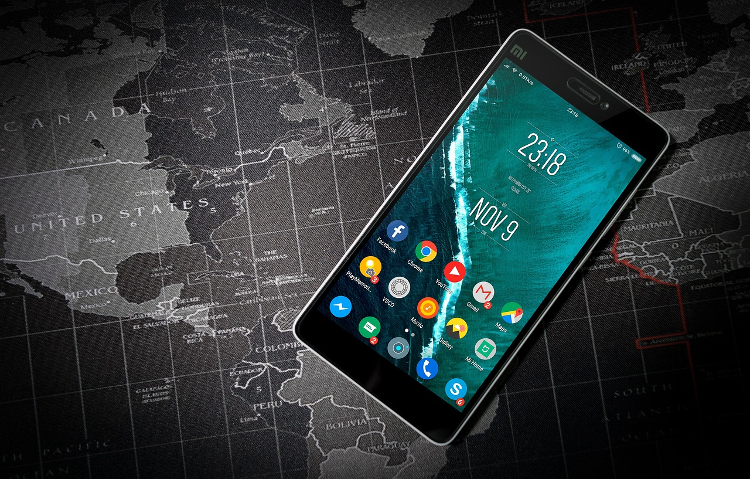
Are you tired of the same old app icons on your Android home screen? Want to give your phone a fresh look without rooting or complex hacks? You’re in luck! Changing android app icons is easier than you might think.
In this guide, we’ll walk you through 5 simple methods to swap out those default icons and personalise your device. Whether you prefer built-in options, third-party launchers, or even creating your own custom icons, we’ve got you covered. Let’s dive in and explore how to change android app icons like a pro!
Using Native Settings (If Available)
Some Android devices, especially those with custom skins like Samsung’s One UI, have built-in options to change app icons. Here’s how it works on Samsung phones:
- Open the Settings menu on your Samsung Galaxy device
- Scroll down and tap Themes
- Select the Icons tab at the bottom
- Choose an icon pack from the Featured or Top sections
- Download your preferred icon pack
- Once installed, the new icons will automatically apply to your first-party apps
Keep in mind that this method may be limited and not support third-party icon packs. But it’s a quick and easy way to change android app icons without any extra downloads.
Using Third-Party Launchers
For more flexibility and customisation options, many Android users turn to third-party launchers. These alternative home screen apps often come with robust icon customisation features. One of the most popular is Nova Launcher.
1. Steps for Nova Launcher
- Download and install Nova Launcher from the Google Play Store
- Open the Nova settings menu
- Select Look & Feel
- Tap Icon Style
- Choose the Icon Theme option
- Select your desired icon pack (download more from the Play Store if needed)
- Tap Apply to change all your app icons at once
With Nova and similar launchers, you can even change individual app icons:
- Long press on the app icon you want to change
- Tap Edit
- Select the new icon from your installed packs, gallery images, or built-in options
- Tap Done to save your changes
Third-party launchers provide the most control over your Android’s look and feel, including changing app icons to suit your style.
Using Shortcut Maker
Don’t want to switch launchers? No problem! You can use a handy app called Shortcut Maker to change individual app icons without overhauling your entire home screen.
- Download Shortcut Maker from the Google Play Store
- Open the app and tap Apps
- Select the app whose icon you want to change
- Tap the Icon section in the settings menu
- Choose your preferred icon from the available packs
- Customise the icon’s style and theme from the Style and Themed tabs
- Tap to apply your changes
This method takes a bit more manual effort, but it’s great for giving a few specific apps a new look.
Using Any Icon App
For a streamlined android app icon-changing process, try a dedicated icon-swapping app like Any Icon. It makes applying custom icons a breeze, even if you’ve downloaded them outside the Play Store.
- Download the Any Icon app from Google Play
- Extract your custom icons to your device if you’ve downloaded an external pack
- Open Any Icon and select the app you want to customise
- Tap the Image option and choose your saved icon file
- Adjust the icon’s shape and style as desired
- Tap Use to add the new icon to your home screen
With this approach, you can turn any image into an app icon!
Creating Custom Icons with Android Studio
For the tech-savvy and creative types, Android Studio offers a powerful tool called Image Asset Studio. It allows you to craft your own unique app icons from scratch.
- Open Android Studio and navigate to your project’s resources
- Right-click and select New > Image Asset
- Set the Icon Type to Launcher Icons (Adaptive and Legacy)
- In the Foreground Layer tab, choose your desired Asset Type (image, clip art, or text)
- Select your background colour or image in the Background Layer tab
- Tweak the settings in the Options tab as needed
- Click Next to generate your custom icons
Image Asset Studio will save your new icons in the appropriate res/mipmap- directories, ready to use in your Android app. You’ll also get a high-res 512 x 512 pixel version for uploading to the Google Play Store.
While this method requires some development knowledge, it offers unparalleled control over your app’s branding and visual identity.
As you can see, changing android app icons is a quick and fun way to refresh your phone’s interface. Whether you opt for built-in settings, third-party launchers, icon-swapping apps, or custom designs, you’ve got plenty of options to personalise your device.
Remember, small touches like new icons can make your Android experience feel fresh and exciting without the need for a brand new phone. So go ahead and experiment with these methods to find your perfect home screen setup!
Bonus Tip: To make the most of your Android experience, consider trying the feature-rich Airtel Thanks app. Not only does it simplify managing your Airtel account, but it also offers exclusive rewards, coupons, and access to exciting digital content. It’s a great way to enhance your mobile journey while customising your app icons to perfection.