As the world moves towards more streamlined and efficient mobile connectivity solutions, eSIM technology has emerged as a game changer. Samsung, a leader in the smartphone industry, has embraced this innovation, making it easier than ever to connect eSIM to Samsung phones. In this article, we’ll guide you through the process of eSIM setup on Samsung phone models, ensuring you can take advantage of this cutting-edge technology.
What is an eSIM?
Before we dive into the setup process, let’s quickly understand what an eSIM is. Short for “embedded SIM,” an eSIM is a digital SIM card built directly into your smartphone. It eliminates the need for a physical SIM card, allowing you to activate a cellular plan from your carrier without having to visit a store or wait for a physical SIM to arrive in the mail.
Checking eSIM Compatibility on Your Samsung Phone
The first step in setting up an eSIM on your Samsung phone is to ensure that your device supports the technology. Here’s how you can check:
- Go to your device’s “Settings”
- Tap on “About Phone”
- Look for the “Status” section
- If you see an option labeled “IMEI (eSIM),” your device is compatible with eSIM
Alternatively, you can navigate to “Settings,” then “Connections,” and tap on “SIM Card Manager.” If you see an option to “Add eSIM,” your phone supports the technology.
Samsung Models That Support eSIM
As of 2024, several Samsung models support eSIM technology, including:
- Galaxy S20 series
- Galaxy S21 series
- Galaxy S22 series
- Galaxy Z Fold and Flip series
- Galaxy S24, S24+, and S24 Ultra
Step-by-Step Guide: How to Connect eSIM to Samsung Phone
Now that you’ve confirmed your Samsung phone’s compatibility, let’s walk through the process of eSIM setup on Samsung phone using a QR code provided by your carrier.
Step 1: Ensure Internet Connectivity
Make sure your Samsung phone is connected to the internet via Wi-Fi or mobile data. A stable connection is crucial for a smooth setup process.
Step 2: Access Settings
Navigate to your device’s “Settings” menu.
Step 3: Open SIM Card Manager
Select “Connections” and then “SIM Card Manager.”
Step 4: Add eSIM
Choose the “Add Mobile Plan” option and then select “Scan QR Code.”
Step 5: Scan the QR Code
Use your phone’s camera to scan the QR code provided by your carrier. You can either display the QR code on another device like a laptop or take a screenshot of it.
Step 6: Confirm Installation
After scanning the QR code, follow the on-screen instructions to add the eSIM. You may see a message asking you to “Turn on new mobile plan”; tap “Ok” to proceed.
Step 7: Activate the eSIM
Once the installation is complete, your eSIM will be activated, and you can start using it for calls, texts, and data.
Manual eSIM Installation on Samsung Phones
If your carrier doesn’t provide a QR code, you can still set up your eSIM manually:
- Go to “Settings” > “Connections” > “SIM Card Manager”
- Choose “Add Mobile Plan” and then select “Enter Code Manually”
- Input the SM-DP+ address and other details provided by your carrier
- Tap “Connect,” then “Add,” and finally “Use It Now” to complete the installation
Tips for a Smooth eSIM Setup on Samsung Phones
To ensure a hassle-free eSIM setup on your Samsung phone, keep these tips in mind:
- Ensure you have a stable internet connection, preferably via Wi-Fi
- If you encounter any issues, contact your carrier for assistance
- Remember, eSIM allows you to manage multiple phone lines effortlessly, making it convenient to switch between providers and plans
By following these simple steps, you can easily set up and activate an eSIM on your compatible Samsung phone, embracing the future of mobile connectivity.
As technology continues to evolve, eSIM is set to become the new standard in mobile connectivity. With Samsung leading the charge in eSIM adoption, setting up an eSIM on your Samsung phone has never been easier. By following our step-by-step guide, you can unlock the benefits of dual SIM functionality without the hassle of physical SIM cards.
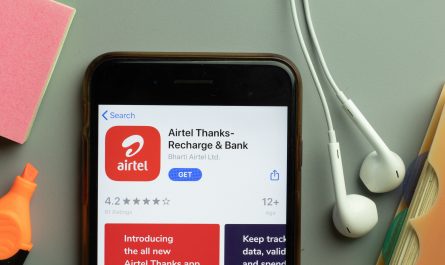
For a seamless experience in managing your mobile services, consider downloading the Airtel Thanks app. With features like easy recharges, bill payments, and rewards, the app simplifies your mobile life while ensuring you never miss out on the latest offerings from Airtel. Embrace the future of mobile connectivity with eSIM on your Samsung phone and let the Airtel Thanks app be your companion in this digital journey.