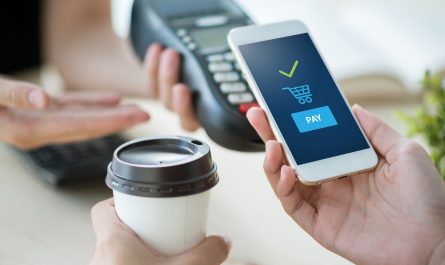
NFC (Near Field Communication) tags have revolutionised the way we interact with our devices, making it easier than ever to automate tasks and streamline our daily routines. By triggering Apple Shortcuts with NFC tags, you can unlock a world of possibilities and take your productivity to new heights. In this guide, we’ll walk you through the process of setting up NFC tags with Apple Shortcuts and share some practical tips to help you master this technology.
Getting Started: Choosing the Right NFC Tags
Before we dive into the setup process, it’s crucial to ensure you have the right NFC tags for your iPhone or iPad. Not all NFC tags are created equal, so opt for ones specifically designed to be readable by your iOS device. This will help avoid compatibility issues and ensure a smooth experience.
Setting Up NFC Tags with Apple Shortcuts
Follow these step-by-step instructions to trigger Apple Shortcuts with NFC tags:
- Open the Shortcuts App and Create Automation
- Launch the Shortcuts app on your iPhone or iPad.
- Navigate to the “Automation” tab at the bottom of the screen.
- Tap the “+” icon at the top to create a new automation.
- Select “Create Personal Automation”.
- Choose NFC as the Trigger
- Scroll down the list of triggers and select “NFC”.
- Scan your NFC tag to associate it with the automation.
- Give your NFC tag a name for easy identification.
- Define Actions for the Shortcut
- After scanning and naming your NFC tag, tap “Next”.
- Set up the actions you want the shortcut to perform when triggered by the NFC tag.
- You can choose from a wide range of actions, such as launching apps, sending messages, controlling smart home devices, and more.
- Use Your NFC Tag
- Once your shortcut is set up, you can trigger it by holding your iPhone near the associated NFC tag.
- Your iPhone will detect the tag and automatically perform the defined actions.
Practical Tips for NFC Shortcut Mastery
To get the most out of triggering Apple Shortcuts with NFC tags, consider these practical tips:
1. Strategic Placement
Place your NFC tags in easily accessible locations that are out of direct sight to maintain aesthetics. This could be under your desk, behind a picture frame, or on the back of a gadget.
2. Naming and Testing
Give your shortcuts and tags clear, descriptive names for easy identification and future adjustments. Always test the responsiveness of each tag, taking into account any impact from your device’s case.
3. Troubleshooting
If you encounter issues with an NFC tag not responding, ensure your iOS device supports NFC and is updated to the latest version. Reposition your device or check for updates in the Shortcuts app if problems persist.
Advanced Use Cases
Once you’ve mastered the basics of triggering Apple Shortcuts with NFC tags, explore these advanced use cases to take your automation game to the next level:
1. Home Automation
Integrate NFC tags with your smart home setup to trigger specific actions. For example, create a shortcut that turns on your smart lights or adjusts your home environment when you tap the associated NFC tag.
2. Integrating with Other Services
Combine the power of NFC tags with other smart home systems like Homey. Create a Homey flow with a webhook trigger and use the Shortcuts app to send a webhook request when the NFC tag is scanned. This allows you to trigger specific actions based on the NFC tag value.
Alternative Methods for Writing to NFC Tags
If you require more advanced control over the actions your NFC tags perform, consider using the NFC Tools app. This app allows you to write various types of records to the NFC tag, including URLs, shortcuts, and more. For instance, you can write a URL record that opens a specific webpage when the tag is scanned.
Triggering Apple Shortcuts with NFC tags opens up a world of possibilities for automating tasks and simplifying your daily life. By following the steps outlined in this guide and leveraging the practical tips, you can create seamless and user-friendly interactions with your NFC-enabled shortcuts. Whether you’re streamlining your home automation setup or integrating with other services, the potential applications are vast.
As you explore the capabilities of NFC tags and Apple Shortcuts, consider how you can further enhance your experience with the Airtel Thanks app. This comprehensive platform not only allows you to manage your Airtel services but also offers a range of features and benefits designed to elevate your digital lifestyle. From easy recharges and bill payments to exclusive rewards and offers, the Airtel Thanks app is your gateway to a world of convenience and value.
So, what are you waiting for? Start triggering Apple Shortcuts with NFC tags today and unlock a new level of efficiency and innovation in your daily life. And don’t forget to download the Airtel Thanks app to take your digital experience to new heights.