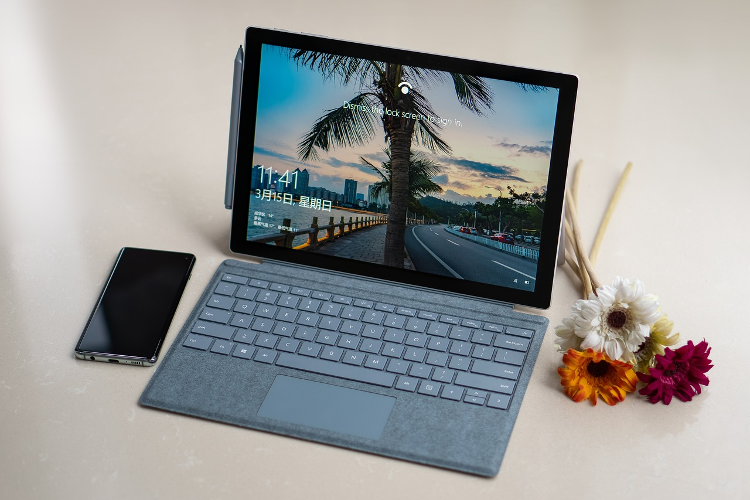
As the command centre of your Windows 10 experience, the taskbar plays a crucial role in how you interact with your computer. While the default taskbar settings work well for most users, customising your Windows 10 taskbar can help you streamline your workflow and boost productivity. In this guide, we’ll explore 8 simple ways to personalise your taskbar using both built-in options and free third-party tools.
Using Windows 10’s Built-In Settings
Windows 10 offers several native options to customise the Windows 10 taskbar without the need for additional software. Here’s how to access these settings:
1. Taskbar Properties
To modify basic taskbar settings:
- Right-click on an empty area of the taskbar.
- Select “Taskbar settings” or “Properties.”
From here, you can:
- Adjust the size of taskbar buttons
- Pin items to the taskbar
- Manage notification area icons
2. Taskbar Customisations
The Taskbar settings menu also allows you to:
- Hide or relocate the taskbar
- Enable or disable the Task view button
- Show or hide the Cortana icon
- Add toolbars (e.g., Links, Desktop)
- Change taskbar colour and transparency
3. Taskbar Behaviors
To fine-tune how the taskbar behaves:
- Go to Settings > Personalisation > Taskbar.
- Under “Taskbar behaviours,” select “Never combine taskbar buttons and hide labels.”
This setting displays application windows and their labels separately, making it easier to identify and switch between open programs.
Supercharge Your Taskbar with Free Tools
While the built-in options offer a good starting point, third-party software takes Windows 10 taskbar customisation to the next level. Check out these powerful, free tools:
1. RainbowTaskbar
Add a splash of colour to your taskbar with RainbowTaskbar. This app lets you:
- Apply rainbow-themed gradients
- Customise opacity and layer options
- Set taskbar style (blurred, transparent, solid)
- Fine-tune fading and gradient preferences
A dedicated editor makes it easy to create your perfect look.
2. ExplorerPatcher
Prefer the classic Windows 10 taskbar on Windows 11? ExplorerPatcher has you covered. It enables you to:
- Roll back to the Windows 10 taskbar style
- Customise taskbar position, search button, and system icons
- Adjust taskbar alignment and icon size
- Personalise clock, battery, sound, and more
3. RoundedTB
Soften the taskbar’s harsh edges with RoundedTB, a free Microsoft Store app. Its features include:
- Adding rounded corners, margins, and segments
- Adjusting corner radius and margin size
- Enabling or disabling dynamic mode
- Showing the system tray
- Tweaking translucent TB compatibility
4. 7+ Taskbar Tweaker
While designed for Windows 10, 7+ Taskbar Tweaker can be used on Windows 11 with Windhawk mods. It offers granular control over:
- Right-click menu options
- Middle-click actions
- Thumbnail behaviour
- Mouse hovering effects
- Pinned item settings
- Grouping and combining preferences
The Taskbar Inspector tool lets you group, combine, or label taskbar items for better organisation.
5. TaskbarX
This lightweight app makes it easy to:
- Centre taskbar icons
- Move the taskbar to any screen edge
- Customise taskbar icon size and padding
- Match taskbar colour to your desktop background
TaskbarX works seamlessly on Windows 10, 8, and 7.
Windows 11 Sneak Peek: Small Taskbar Buttons
While not yet available in Windows 10, an upcoming Windows 11 feature may tempt some users to upgrade. Expected in late 2024, “small taskbar buttons” will let you shrink taskbar icons, similar to the Windows 10 option. Although still in development, this feature promises to bridge the gap between the two operating systems.
Just as customising your Windows 10 taskbar can enhance your desktop experience, the Airtel Thanks app streamlines productivity on the go. This all-in-one platform lets you:
- Manage your Airtel mobile, DTH, and broadband services
- Make secure payments and recharges
- Earn rewards on every transaction
- Access exclusive content and offers
With a user-friendly interface and regular updates, the Airtel Thanks app is a must-have tool for staying connected and productive wherever life takes you.
From built-in settings to powerful third-party tools, there are countless ways to customise your Windows 10 taskbar. By exploring these options and finding the perfect setup for your needs, you can create a more efficient, personalised, and enjoyable Windows experience. And with the Airtel Thanks app by your side, that productivity extends seamlessly to your mobile devices. So go ahead—unleash your creativity and customise your Windows 10 taskbar today!